
Tutorials Archive
Tutorials Archive
Every technique on Bio Rust in one place. Digital art tutorials on character and anime art, painting fundamentals, process and provenance, and the free resources, filterable by pillar, with a suggested reading order for anyone starting from the beginning.
Every technique on Bio Rust lives here. These digital art tutorials are written as methods rather than walkthroughs: an ordered set of decisions you can follow at the canvas, with numbered steps, a direct answer near the top, a callout for the single most important idea, at least one table of settings or mistakes and fixes, and a short FAQ drawn from the questions people actually search. Filter by pillar to narrow the list, or jump straight to the flagship anime eye method, the most linked page in the archive.
Difficulty tags tell you where to start. Beginner pieces assume only that you can hold a pencil or stylus; intermediate pieces assume you have the basics of construction and value. Every tutorial cites two to four outside sources, museum glossaries, software manuals, standards bodies and published research, and names the working artists who tested it.
The four pillars
The character and anime art pillar is where the library began: the eye, the head from any angle, and hair as blocks, each built from a ball, a jaw and a wrapping cross so that a face reads at any angle. The digital painting fundamentals pillar teaches values, edges and blend modes in that order, because value decides whether an image reads, edges decide where the eye goes, and blend modes are only the machinery for placing light once you know where it belongs.
The process and provenance pillar is the library's answer to the age of generated images: how to document your process so proof exists before anyone asks, how Content Credentials and metadata work and what they cannot prove, how to check where an image came from, and what to do when someone says your art is AI. The free brushes and resources library holds the ink, painterly, texture and palette sets, each documented with settings and a workflow, plus the guide to installing them.
A suggested reading order
If you are new, work through the archive in this order. Construction first, then light and form, then the habits that turn every finished piece into a record of how it was made. Each row is about an hour at the canvas.
| Tutorial | Pillar | What it teaches |
|---|---|---|
| How to draw anime eyes | Character and anime art | A five step eye: gap, lash line, cropped iris, one highlight, lid shadow |
| Anime head proportions from any angle | Character and anime art | Ball, jaw and wrapping cross that survive the turn to three quarter and profile |
| Drawing hair as blocks | Character and anime art | Three to five masses from the crown and one band of shine |
| Values before color | Digital painting | Three grey block-in, the squint test, color on a solid structure |
| Hard and soft edges | Digital painting | Hard, firm, soft and lost edges, and where each belongs |
| Layer blend modes for shading | Digital painting | Multiply, Screen, Add and Overlay as a shadow and light stack |
| Getting started with the free brushes | Free resources | Installing a set, tuning pressure, keeping a small library |
| How to document your art process | Process and provenance | Roughs, layered files, dated saves and a timelapse as evidence |
| Checking where an image came from | Process and provenance | Credential, metadata, earliest copy, then the pixels |
The two pages most readers arrive on are the eye method and drawing hair as blocks; both are beginner to intermediate and both stand alone. If a painting looks wrong in color, go straight to values before color. If you have been asked to prove a piece is yours, start with documenting your art process and follow the pillar from there.
How the pillars connect
The same construction, value and edge skills run through all of them. A head built on a wrapping cross reads only when its values are sorted; a value structure only sings when the edges are placed; and an artist who knows why a face is built the way it is can both prove their own process and judge a picture that skipped a step. The tutorials are written so that each one hands you to the next. New techniques are added to the library over time. Cannot find a topic? Search every tutorial and resource, or email a request from the contact page.
Character & Anime Art
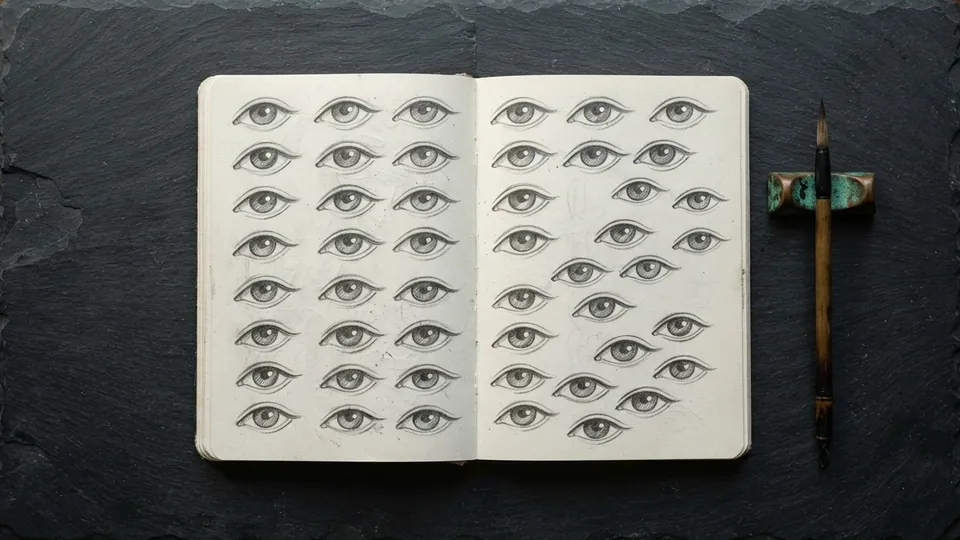
Plate 01 How to Draw Anime Eyes: A Complete Method
The eye is the anchor of a stylized face. Build it in the same order every time, from the gap to the lash line to the iris, and it stops feeling like luck.
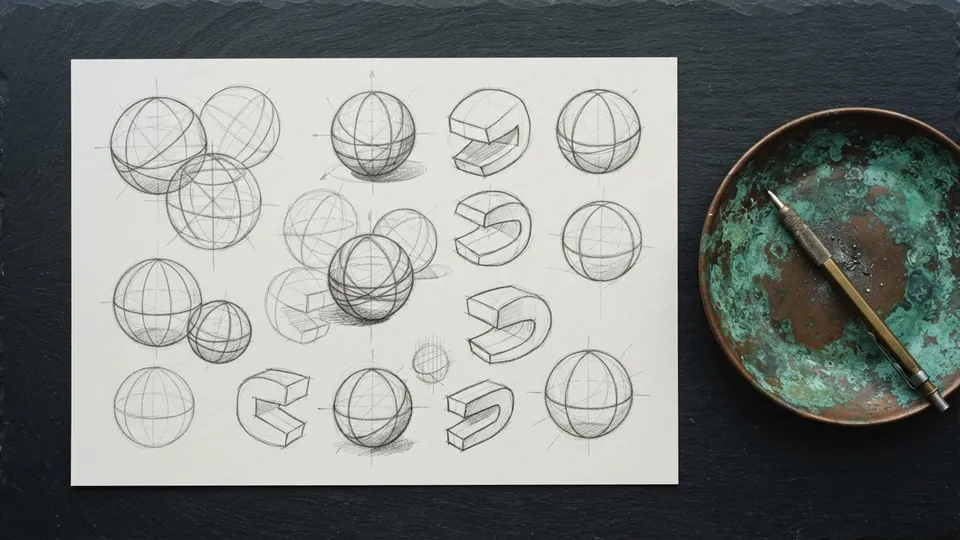
Plate 02 Anime Face Proportions: Head Construction From Any Angle
A reliable construction for the stylized head that survives being turned: ball, jaw, wrapping cross, then features, with the measurements in eye heights and head widths for front, three quarter and profile.
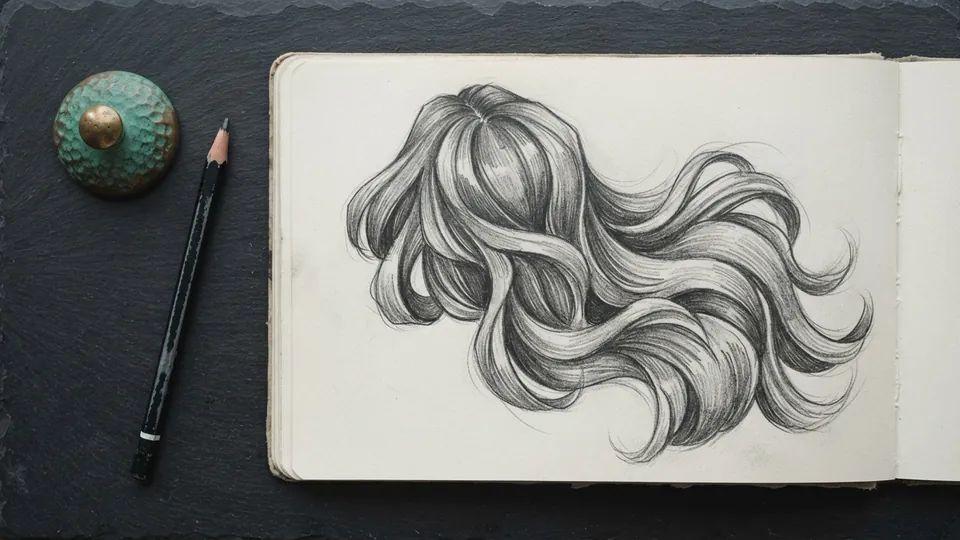
Plate 03 How to Draw Anime Hair as Blocks, Not Strands
Stop drawing individual hairs. Group hair into a few large flowing masses from the crown, ink the edges with weight, and add one band of shine, and the whole thing reads as hair.
Digital Painting
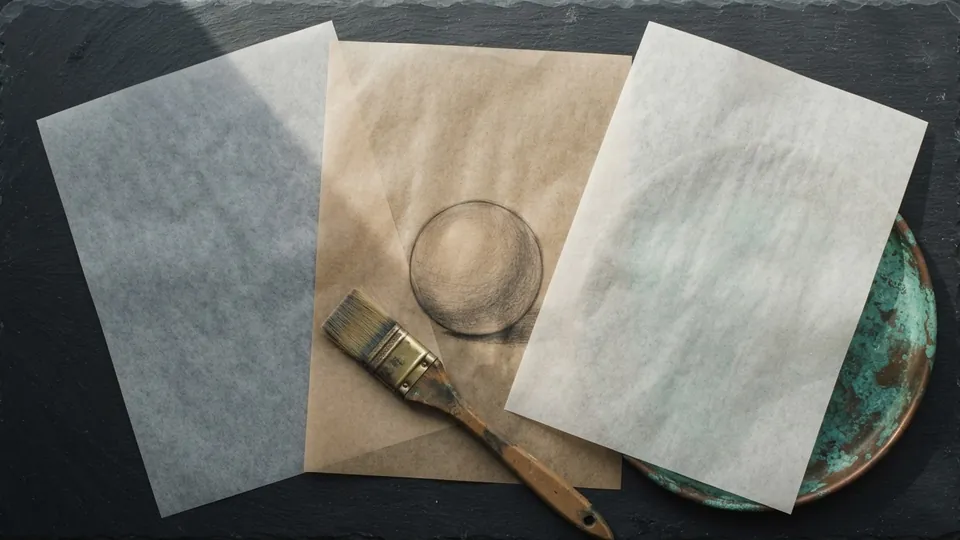
Plate 04 Layer Blend Modes for Shading, Explained
Multiply, Screen, Overlay and Add do most of the work in digital shading. Here is what each one is for, the stack that uses them, and the order to build it.
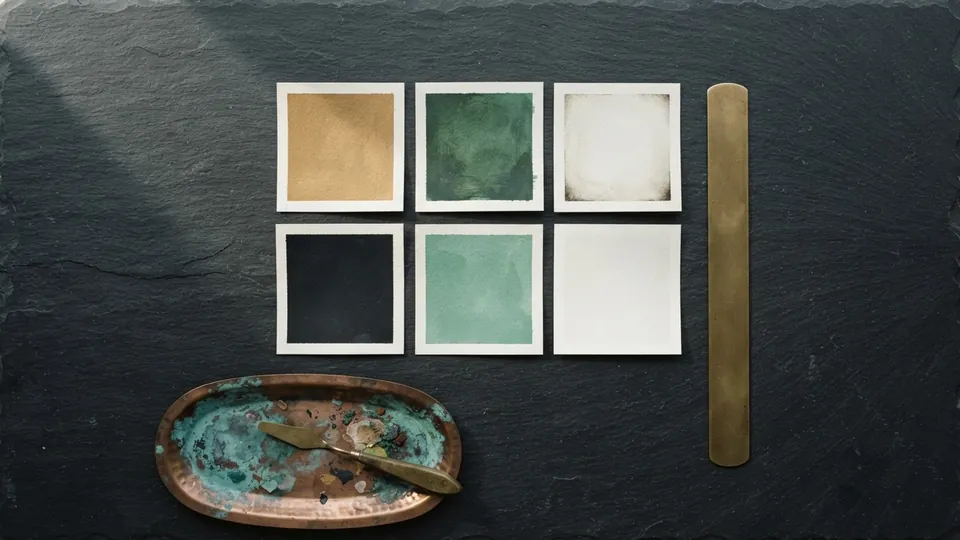
Plate 05 Blend Modes Cheat Sheet for Digital Painting
The blend modes that do the real work in digital painting, what each does to the pixels beneath it, the job it is best suited for, and a starting opacity. Keep it open while you paint.
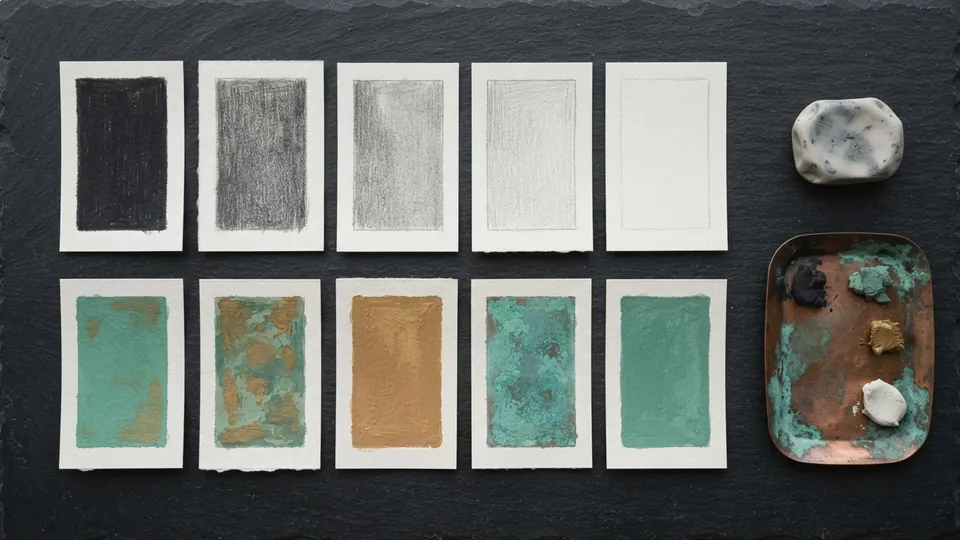
Plate 06 Values in Painting: Why Your Color Looks Off
If a painting looks wrong in color, it is almost always wrong in value. Build the value structure in three greys before you touch hue, and color becomes the smaller half of the job.
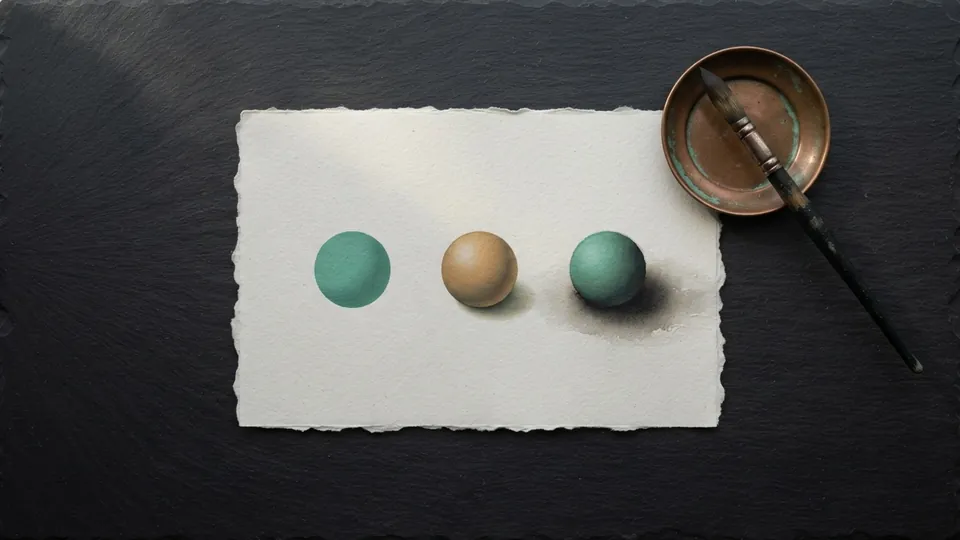
Plate 07 Hard and Soft Edges: Controlling the Eye
Edges are a language. Where you put hard, soft and lost edges tells the viewer where to look, what a surface is made of, and how fast a form turns away from the light.
Process and Provenance
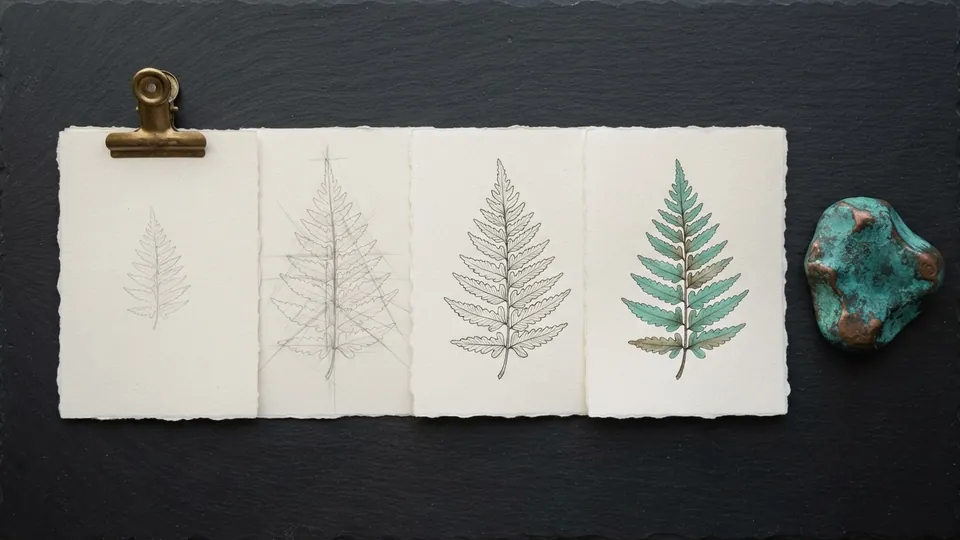
Plate 08 How to Document Your Art Process
A repeatable way to keep thumbnails, construction, session saves, layered files and timelapse so you can show exactly how a piece was made, and prove authorship when someone asks.
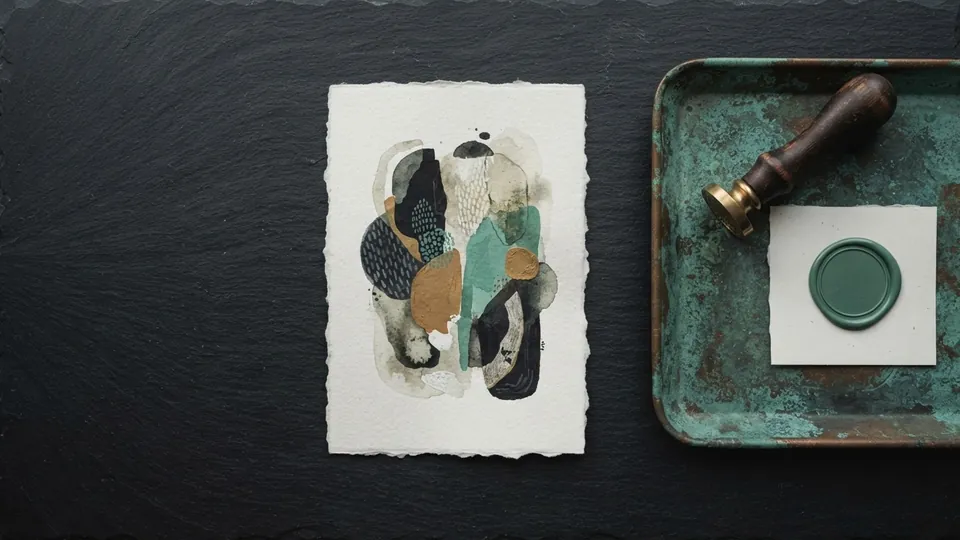
Plate 09 Content Credentials and C2PA for Artists
A Content Credential is a signed record of who made a file and what was done to it. Here is what the manifest holds, how to read one, and where it stops being proof.
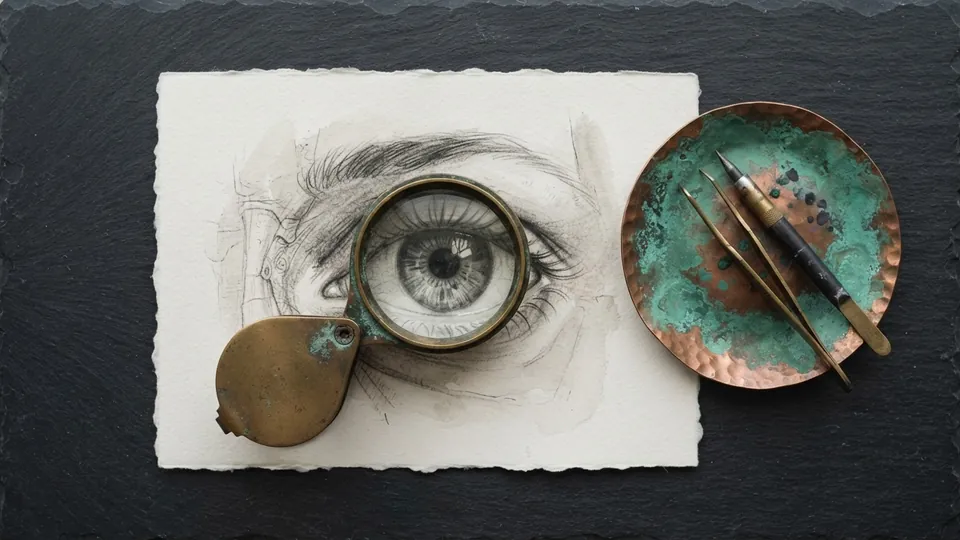
Plate 10 How to Tell If Art Is AI: A Craft-Based Method
A craft-based way to judge whether an image was generated: provenance and process first, then construction, edges, light and detail, with an honest account of how reliable each tell is.
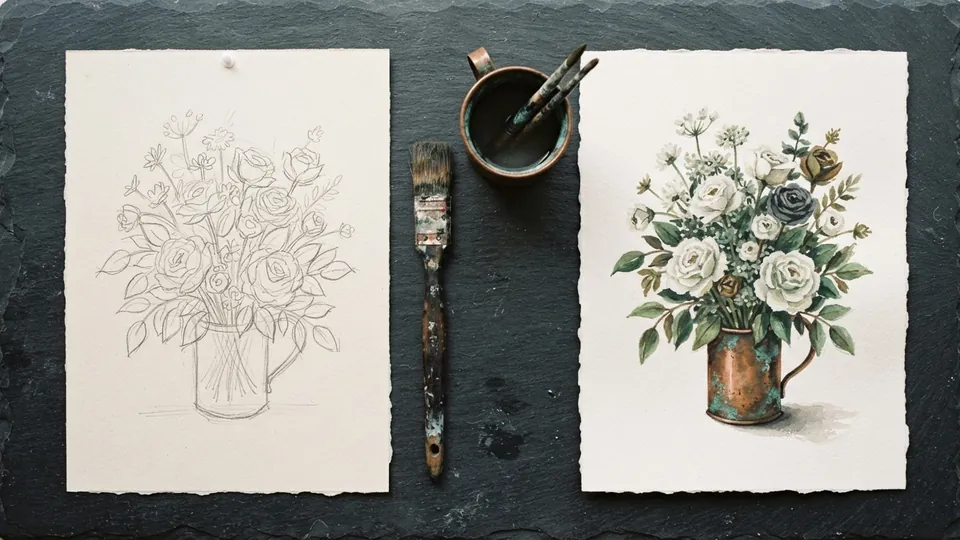
Plate 11 AI Art vs Human Art: What Hand Technique Teaches
What image generators do well, what they cannot give you, and why construction, value and edge control matter more when a machine can output a finished-looking picture in seconds.
Plate 12 Image Metadata for Artists
Every image carries hidden fields beside its pixels. Fill the ones that claim your work, strip the ones that leak your location, and test what each platform keeps.
Plate 13 How to Check Where an Image Came From
Before you credit, repost or accuse, trace the image. Seven checks in a fixed order, from the largest copy to the visual tells, with a log of what each one showed.
Plate 14 Why AI Image Detectors Flag Real Art
Why automated detectors misread stylized and heavily polished hand-made work, what the research actually found, and how artists, judges and moderators should treat a score.
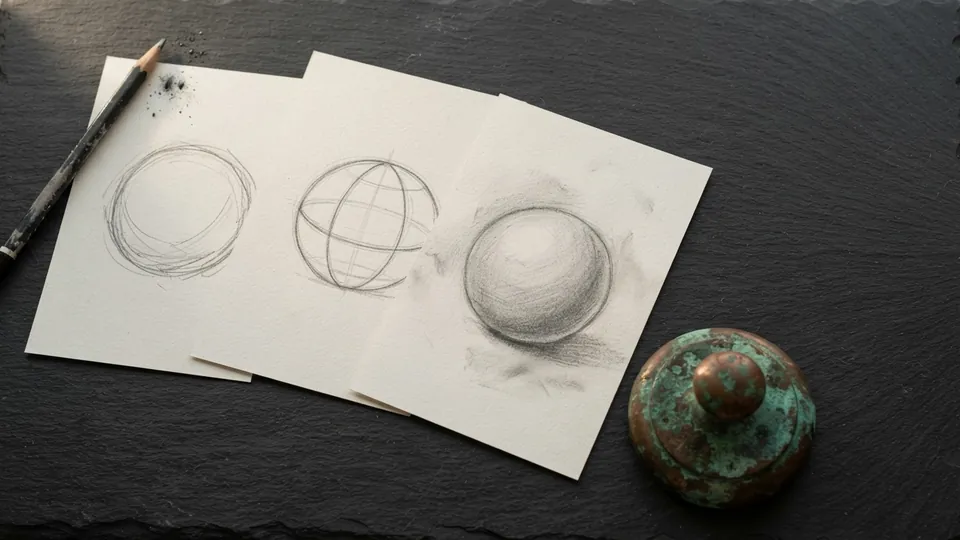
Plate 15 Accused of Using AI Art? How to Respond
A calm, evidence first playbook for artists accused of posting generated work: what to share, what to keep private, how to appeal, and how to stop it happening again.
Plate 16 Artist Statement: Write It in Your Own Voice
Your artist statement, bio and captions are part of the record around your art. Write them from process notes, keep them specific, and say plainly when a writing tool helped.
Common questions
Where should a beginner start with these digital art tutorials?
With the anime eye method, then head proportions, then hair as blocks. Those three give you a face that reads at any angle. After that, values before color and hard and soft edges from the painting pillar, which apply to every subject. Each takes about an hour at the canvas.
What software do the tutorials use?
Any drawing or painting app. The methods are tool agnostic; where a step needs a specific feature, such as a blend mode, a stabilizer or a timelapse export, the tutorial names it and the free brush sets ship for Procreate, Krita, Clip Studio and Photoshop.
Are the tutorials free?
Yes, all of them, with no account, no email and no paywall. The free brushes, textures and palettes are also free for personal and commercial work, with the single rule that the files cannot be resold as your own pack. The download bundles are being finalized for release.
How are the tutorials tested and corrected?
Each method is worked at the canvas by the studio before it is published, cites two to four outside sources, and is corrected when a reader reports an error. The editorial method page and the editors page explain who writes and reviews the archive and how corrections are handled.
Related reading
- Search the libraryFind any technique or resource by keyword.
- How to Draw Anime Eyes: A Complete MethodThe eye is the anchor of a stylized face. Build it in the same order every time, from the gap to the lash line to the iris, and it stops feeling like luck.
- Process and Provenance pillarDocument your process and prove authorship.
- Blend Modes Cheat Sheet for Digital PaintingThe blend modes that do the real work in digital painting, what each does to the pixels beneath it, the job it is best suited for, and a starting opacity. Keep it open while you paint.
- Bio Rust homeThe digital art technique library, start here.