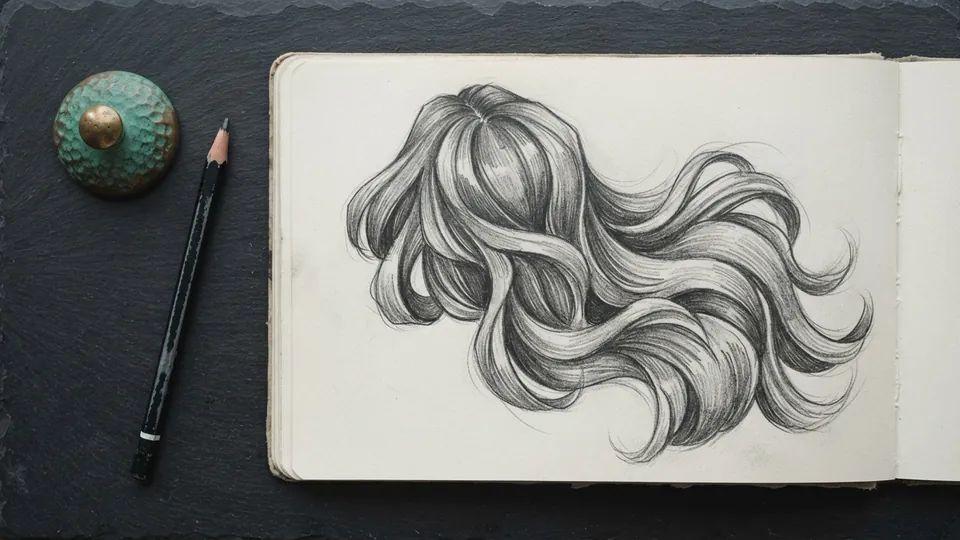
How to Draw Anime Hair as Blocks, Not Strands
To draw anime hair, mark the crown on the skull, block three to five large masses that flow out and down from it, overlap them, add strands only at the tips and where masses meet, then shade each mass as a unit and place one broken band of shine where the skull turns toward the light.
Hair drawn strand by strand looks like wire. Hair drawn as a few large masses that flow from the crown looks like hair. This is how to draw anime hair by grouping first, with rendering after: once the masses are right, any style from a cropped bob to twin tails reads as one head of hair. It assumes the skull underneath is already built the way the anime head proportions tutorial describes, because hair sits on that ball and follows its curve.
Find the crown first
All hair grows from a point on the top of the skull, usually slightly off center and back. On the ball construction, mark it about a quarter of the head width behind the top center point and a little to one side of the center line. Every mass of hair flows out and down from that single origin, and if the flow is consistent the style can be anything from spiky to soft and still read as one head of hair.
Hair also has thickness. Draw the hairline about one eye height above the brow line, then draw the outer silhouette of the hair 0.1 to 0.15 head widths outside the skull all the way round. Anything drawn tight to the skull reads as a swimming cap, and this gap is the single biggest difference between hair that sits on the head and hair that is painted onto it.
Trace every interior line back toward the crown with your eye. If a line would not reach it, the line is fighting the flow and should go.
Block three to five masses
Divide the hair into a small number of big shapes: a front section over the forehead, two side masses, and a back mass. Draw each as a single flowing silhouette before you add any interior line. Overlap them so they tuck under each other, because overlap is what creates depth. Drawing hair in masses like this is the same discipline as blocking a figure: silhouette first, then interior.
Silhouette the masses
Outline each mass as one shape with a clean, flowing edge. No internal detail yet. Work at a brush size around 1 percent of canvas width so you cannot fuss.
Set the parting and flow lines
A few long lines inside each mass, all curving away from the crown, describe the direction the hair travels. Three to five lines per mass is enough.
Add detail only at the edges
Break up the silhouette with a few strands at the tips and where masses meet. Leave the centers of the masses clean.
Shade each mass as a unit. The undersides where masses tuck are darker; the tops that catch light are lighter. A single soft shadow between masses does more than a hundred rendered strands.
How many masses each hairstyle needs
Any anime hair tutorial comes down to three decisions: the mass count, the direction the masses flow, and where the shine band sits. The table gives working values for the five styles readers ask about most.
| Hairstyle | Masses | Flow direction from the crown | Where the shine band sits |
|---|---|---|---|
| Short (cropped, messy) | 3 to 4 | Radiates in every direction, tips turn up or out | High, just above the eye line, following the curve of the skull |
| Bob | 3 | Down and slightly forward, tips curve inward at the jaw | Mid, around the temple, one clean unbroken band |
| Long (straight or wavy) | 4 to 5 | Down over the shoulders, front masses split at the parting | High on the skull, a second faint band at shoulder level |
| Twin tails | 5 (front, two sides, two tails) | Sides sweep back to the tie points, tails fall from there | One band on the skull, one on each tail below the tie |
| Spiky | 5 to 7 | Up and back in wedges, each spike a tapered mass | Broken, one short streak per spike near its base |
Whatever the count, keep the masses uneven in size. Three masses of the same width read as a helmet; a wide front mass, a narrow side and a large back mass read as hair.
Inking hair with line weight
Line weight does the work that strand count cannot. Ink the outer silhouette and the undersides of masses with the heaviest line, the lines where one mass tucks under another with a medium line, and the flow lines inside a mass with the lightest line, tapering to nothing before they reach the center. On a 2000 px canvas that is roughly 8 px, 4 px and 2 px. Strand tips at the edges should taper to a point with a single flick rather than a closed loop.
A pressure-sensitive inker with a steep size curve makes the taper automatic, and the Krita Manual's inking chapter covers the stabilizer and pressure settings that stop long hair lines from wobbling. The ink and lineart brush set includes a tapered inker built for exactly this stroke. Ink each mass on its own layer if the style is complex; it lets you thin the lines inside one mass without touching its neighbors.
- Heaviest line: outer silhouette, undersides, the shadow side of every mass
- Medium line: where masses overlap, the parting, the hairline against the forehead
- Lightest line: flow lines inside a mass, three to five per mass, tapering out
- No line: the center of each mass and the top of the shine band
One band of shine
Hair catches light in a band that follows the curve of the skull, not in random highlights. Place one soft, broken band of lighter value across the masses at the level where the head curves toward the light. Break it up so it does not look like a plastic wig. Because the band belongs to the skull, it crosses every mass at the same height and bends with the flow lines, which is why a consistent light direction matters; the National Gallery's entry on chiaroscuro describes that single committed light as the basis of readable form.
The Krita Manual's brush tips for hair use the same order: paint the silhouette with a round brush on an s-shaped pressure curve, then build up to lighter values, rather than starting with strands. A working setting is a Multiply layer at 50 percent for the tucks between masses, then a Screen or Add layer at 30 to 40 percent for the band, painted with a soft brush about one eye height tall and erased into breaks. The layer blend modes for shading tutorial explains why those two modes are the right pair.
Common mistakes and how to fix them
Almost every hair drawing that fails does so before any rendering. Check the masses against this table first.
| Symptom | Cause | Fix |
|---|---|---|
| Hair looks like wire or noodles | Drawn strand by strand | Erase to the silhouette and reblock as three to five masses |
| Hair looks like a swimming cap | Silhouette drawn tight to the skull | Push the outer edge out 0.1 to 0.15 head widths |
| Hair looks like a helmet | Masses all the same width | Make one mass clearly wider and one clearly narrower |
| Shine looks like a plastic wig | One unbroken bright band at full opacity | Drop the band to 30 to 40 percent and erase gaps where masses meet |
| Hair changes direction for no reason | Interior lines that do not trace back to the crown | Delete any flow line that would miss the crown |
| Line work looks flat | One line weight everywhere | Three weights: heavy silhouette, medium overlaps, light flow lines |
How to draw anime hair, in one pass
Crown, three to five masses that flow from it, overlap for depth, detail only at the edges, three line weights, one broken band of shine. That is how to draw anime hair in a way that survives any style, because every decision is made at the level of the mass and the strands are the last thing you touch. With the head and hair placed, the how to draw anime eyes tutorial finishes the face, and the rest of the character and anime art pillar builds on the same ball.
Common questions
How do you draw anime hair step by step?
Mark the crown on the skull. Draw the hairline one eye height above the brow and the outer silhouette 0.1 to 0.15 head widths outside the skull. Block three to five masses flowing from the crown, overlap them, add strands only at the tips, ink with three line weights, then shade each mass and add one broken band of shine.
How do you draw anime hair better?
Stop adding strands and start fixing masses. Make the masses uneven in size, trace every interior line back to the crown, keep the centers of the masses clean, and use line weight instead of line count: heavy on the silhouette and undersides, light and tapering on the flow lines inside.
Why does my anime hair look flat?
Usually because the masses do not overlap and the light is not committed. Tuck each mass under its neighbor, darken the tuck with a Multiply layer at about 50 percent, and put one band of shine at the height where the skull turns toward the light.
How many highlights should anime hair have?
One band, broken into pieces, at a single height on the skull. Twin tails and long hair can carry a second, fainter band lower down where the hair curves again. Several bright streaks at different heights suggest several light sources and read as a wig.
Sources and further reading
Primary references for the facts and definitions in this piece, all from independent publishers:
- Krita Manual: Brush tips for hair: painting hair as grouped masses rather than single strands.
- The National Gallery: Chiaroscuro: keeping one light direction so the band of shine sits on every mass consistently.
- Krita Manual: Inking: pressure taper and stabilizer settings for long tapering hair lines.
This method is part of the full character and anime art pillar. Pair it with How to Draw Anime Eyes: A Complete Method and Anime Face Proportions: Head Construction From Any Angle.